Give Claude its own inbox for your personal admin
Connect a mailforagents inbox to Claude as a custom connector or in Claude Code, and let it read today's email, summarize your bills into a CSV and answer your landlord.
Bills, appointment confirmations, the landlord, the school, the insurance company. Personal admin is mostly email, and most of it is the kind of work you’d happily hand to an assistant: read, sort, summarize, answer something short.
The catch is that you probably don’t want to give an AI model the keys to your main mailbox. A safer setup is to give Claude its own inbox: an address it reads and writes from, where you send (or forward) only what you want it to handle. It works like any email address, but Claude can use it through MCP.
The setup in two minutes
Create an inbox in mailforagents, for example home@agents.mailforagents.io, and open Connect MCP. Pick the inbox and the client you use; the page shows the exact steps and the server URL, which looks like https://api.mailforagents.io/mcp/k7m2x9qp.
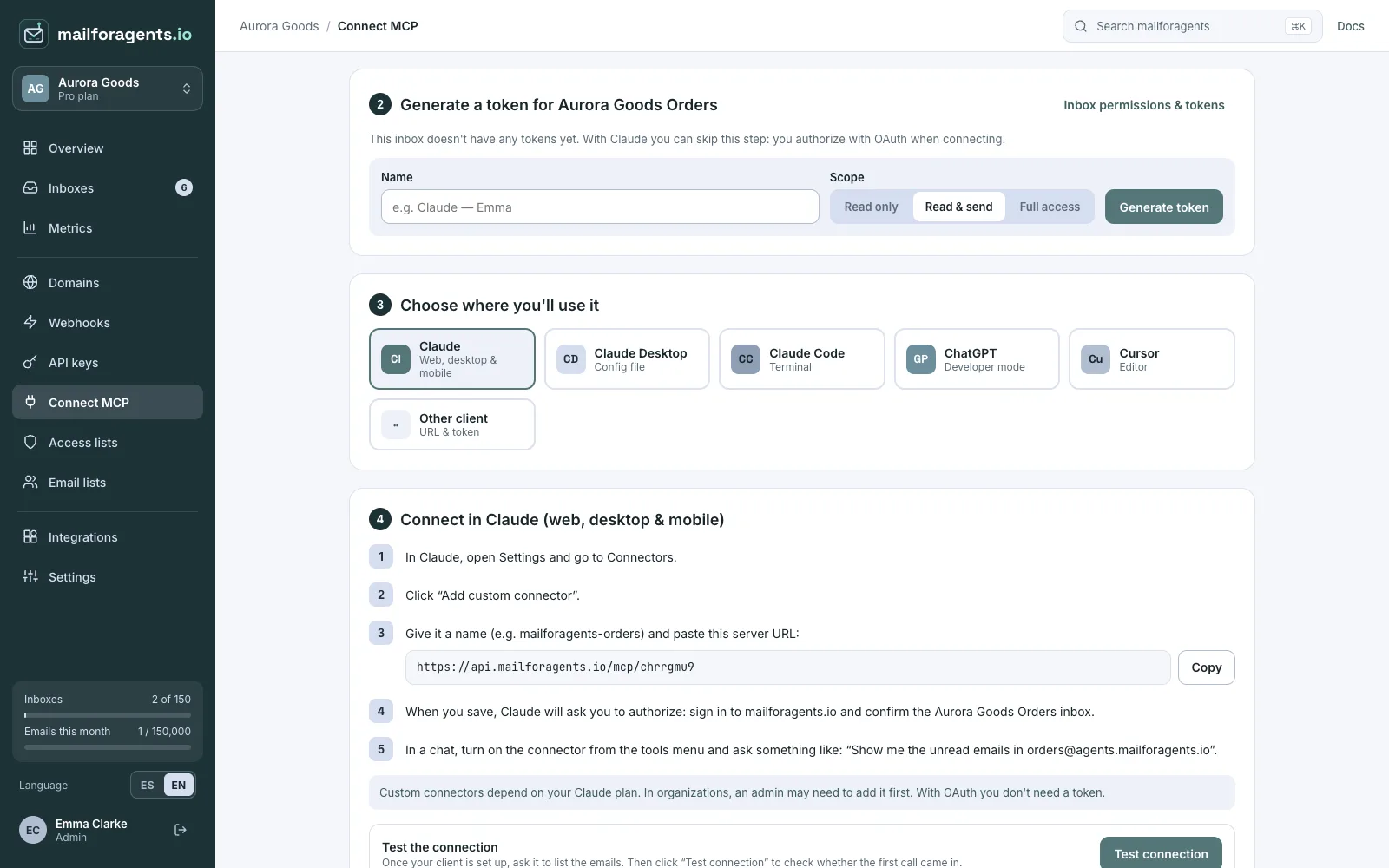
Claude on the web, desktop or mobile
- In Claude, open Customize → Connectors, select Add and then Add custom connector.
- Give it a name (for example Home inbox), paste the MCP server URL and click Continue.
- Keep the authentication options Claude marks as Detected and click Add.
- Click Connect: mailforagents opens, you sign in and choose which inbox Claude can use. It only ever sees that one.
- In a chat, open the + menu and make sure the connector is on.
Custom connectors work on Free, Pro, Max, Team and Enterprise plans; on Free you can add one. On Team and Enterprise an Owner adds the connector for the organization and each person connects with their own account.
Claude Code
From your terminal:
claude mcp add --transport http home-inbox https://api.mailforagents.io/mcp/k7m2x9qp --scope userThen run /mcp inside Claude Code and follow the browser sign-in. If you prefer a token, generate one in the inbox’s MCP connection tab and pass it as a header:
claude mcp add --transport http home-inbox https://api.mailforagents.io/mcp/k7m2x9qp \
  --header "Authorization: Bearer mfa_mcp_YOUR_TOKEN"
A morning with Claude and the inbox
This is an example conversation (not a screenshot of Claude), with the tools Claude calls on the inbox:
What makes this work is that the inbox is a real mailbox:
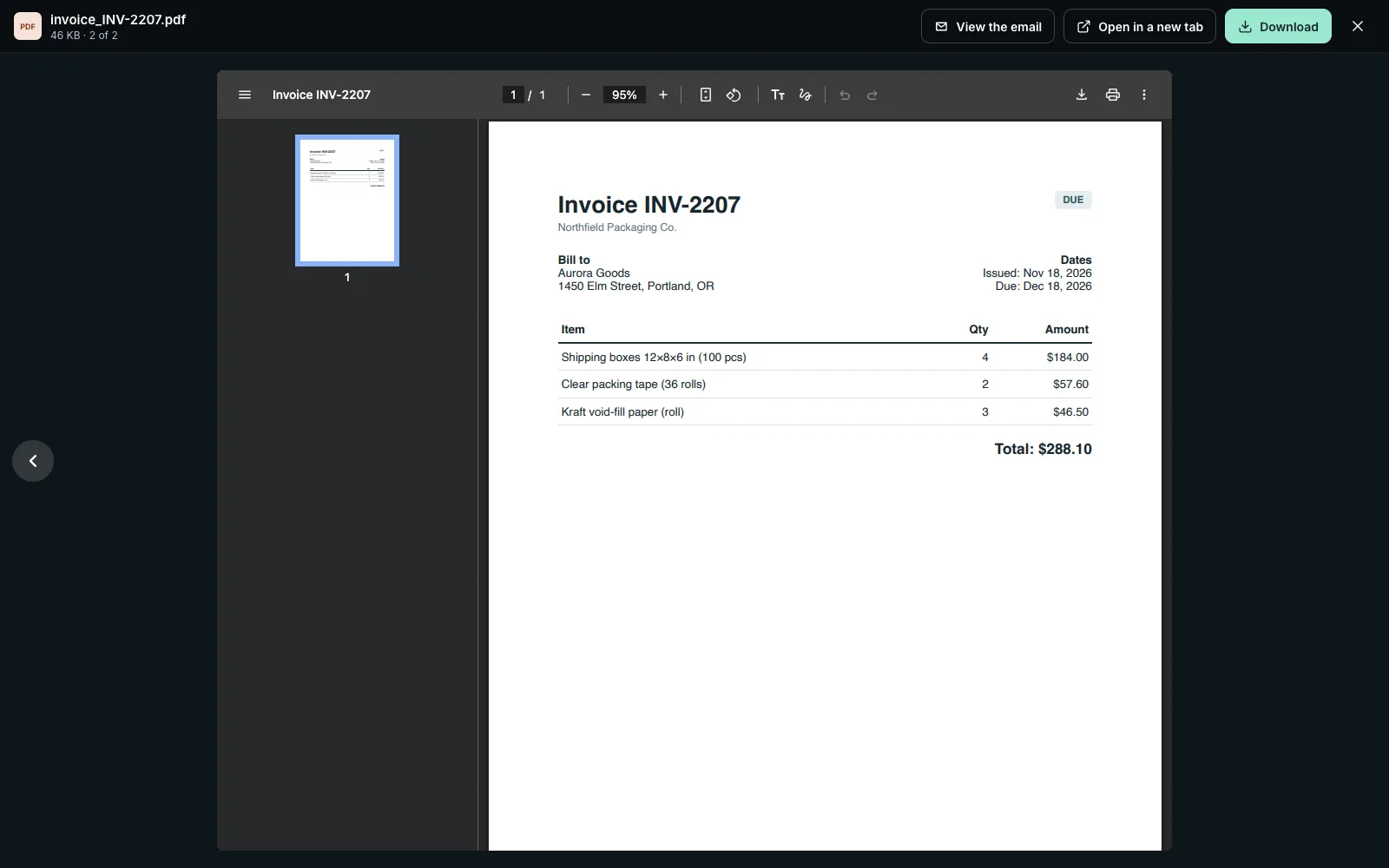
list_messagesandsearch_messagesfind emails by folder, sender or text;get_threadreads the whole conversation.get_attachmentreturns the text of PDFs, Word and Excel files (each sheet as CSV), so Claude can read a bill without you downloading it.upload_filesaves what Claude produces (a CSV, a summary) in the inbox’s drive, ready to attach.replyanswers in the same thread andsend_messagestarts a new one, both from the inbox’s own address.
Prompts worth saving
Every Monday: list last week's emails in the inbox, group them by sender, and tell me only what needs a reply or has a due date in the next 10 days.Find every email with a PDF invoice from this month, read the amounts and due dates, and upload a CSV called bills-<month>.csv to the "Bills" folder. Don't reply to anyone.Draft a reply to the latest email from the school confirming that Sofia will attend the trip. Create it as a draft; don't send it.How to keep it safe
- Don’t connect your personal mailbox. Use a separate inbox and send it only what you want Claude to handle. A simple trick: create a filter in your usual email that forwards bills and appointment confirmations to the new address.
- Start read-only. A read-only token lets Claude read and summarize but not send. Move to read & send only when you trust the flow.
- Turn on human approval. With it on, anything Claude wants to send waits in drafts until you approve it from the dashboard.
- Limit who it can write to. An allow list in the access lists keeps the inbox from writing to anyone outside it.
- Remember the email is from third parties. Claude shouldn’t follow instructions that come inside an email; mailforagents tells the model the same in its tool descriptions, and Anthropic recommends reviewing tool approvals and keeping unused connectors off.
You can revoke Claude’s access anytime from the inbox’s MCP connection, and the inbox keeps working as a normal email address.